Git
Git is a version control system that keep tracking changes in computer files
Versioning
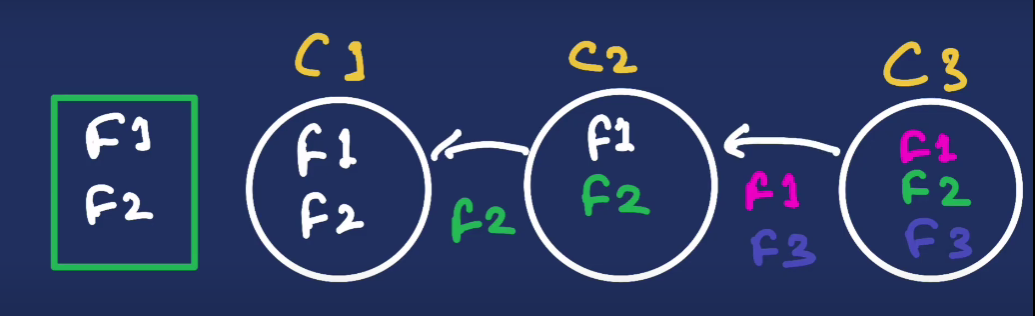
Multple copies of files each recording article at different stages this process is called versioning.
Each copies is callled version
Problem faced in git?
Comparing changes is hard
This won
t work project that has hundreds of copies
- Hard to share these copies and work with other people on this.
How git track changes?
Git makes it easy to keep track of changes to files and folder , collaborating with other people trying things out without disturbing an original working and reverting back to previous version.
Stages in git
Git have three stages-
- Working Area
- Staging Area
- Commited Area
- Working Area
It is also known as untracked area . In this area we can Creat , delete and update files also we can`t track files in this area.
- Staging Area
It is also Known as Index area . In this area we can make changes to file and go back to working area and files are ready to commited.
- Commited Area
It is also known as history area . In this we can track changes to files and commit the files with message
Github
Introduction to github
Github is a software that provide a information related to techs. basically github is a hub of engineer , developer , programmer , hacker , and the people who are related to techs and technogies etc.
Use of github
Anyone can use github free of cost . There are repositories available which you can create yourself. Developer , Programmer , Hacker and ethical hacker ,So all these people who are related to tech upload there program , code , and software and anyone can access these program , code etc. Github also act as backup files.
Git Commands
git init = To initializing git repository
git add = To add a particular file to staging area
git add . = To add whole folder to staging area
git commit -m = To add changes in commited area directly with a message
git commit -am = To add files directly from working area to commited area with message
mkdir [foldername] = To make repository on local machine
touch [filename] = To add file in repository
git checkout [commihash] = To go back in working area in particular commit
git branch [branchname] = To creat a new branch
git status = To check the status of repository
git log = To check the commit history
git restore --staged [filename] = To move the file from staging area to working area
git rm -cached [filename] = To move the file from staging area
git checkout [branchname] = To switch to an named branch
git merge [branchname] = To merge the named branch in the current branch
git branch -d [branchname] = To delete the named branch
git branch -b [ branchname] = To creat and switch to the named branch
git branch [URL] = To clone remote repository to local machine
git pull = To update your local repository to newest commit
git push origin master = To move file to the master remote repository on the github
git push origin [branchname] = To move the files to the branch remote repository on the github
git checkout -b hotflix [branchname] = To creat temporary
git diff [sourcebranch] [targetbranch] = To preview files before merging
git ---version = To check whether git is installed if installed then it tells its version
For suggetion and feedbacks write back ; lovekushrazput143@gmail.com